Sunday, November 11, 2012

Discovering Something New!


I have to admit that I went exploring this week with a purpose. I did find two sites that I think could work well together to meet an objective that I am trying to accomplish in my math class, and the third site that I was looking for is something that I wanted to be able to use across all settings in our program. Flisti may have met that requirement.

I found Flisti featured on the http://www.schrockguide.net/online-tools.html. Flisti describes itself as “a simple way to create free online polls without having to sign-up.” It is very quick to enter a question and set up a poll within seconds. Voter responses are anonymous, although you can allow more than one answer so you could ask for a name as an answer. The quickly generated poll can be shared via Facebook, twitter, Google+, embedded in your Blog or on your webpage, or by invitation using a link.

The big problem with Flisti is that there are advertisements, and ways that kids could get off track. When embedded on a page the poll is bare bones without advertising or site recommendations. However, once students vote they are brought to a page that has links to other polls and also “recommendations” of ads and articles. These recommendations are wordy and in small print, but if the right word showed up, students would be tempted to explore and could get themselves in trouble. In my setting this would not be a problem, because an adult staff member observes the student using any computer. One click off-track, and the student would be immediately shut down. I’ve only been in this position since February, but it seems that the students value any time that they get on the Internet and they know they are being watched constantly, and so we have not had to shut anybody down so far.
*If you respond to the poll below, you'll see what I mean!

Do you think that you would use Flisti in the classroom?
Feedback Form to Flisti
One of my teaching friends is in a district that has required each student to have an iPad for use at school.  In a class of 25 or more, without the constant extra adult supervision, I could see this site as a potential problem because of the lure of the ads, recommendations, and links to other polls. In that kind of setting I think that I would have to use something like PollDaddy or Surveymonkey.  I do use Surveymonkey for quizzes with my students, but it is not as instantaneous as Flisti, and I was really looking for something that I could easily and spontaneously use to obtain feedback at the end of a discussion or as an exit slip based on an immediate lesson.  I did write my concerns and suggestions on a feedback form to Flisti. I’ll let you know if I hear back.

It is not that these other two sites could not be used in any and all subject areas, but I was really looking for a writing and drawing program, and a screencast tool to use in combo.  This way my students could show how they apply POWER to solving mathematical story problems. I was thinking that if they were creating a brief “how-to” screencast, it would encourage them to think about their own thinking and problem-solving a little more deeply.  First of all, let me explain that POWER is a mnemonic device to help students remember steps for unraveling and attacking any mathematical problem.  POWER stands for Plan, Organize, Work, Evaluate, and Restate.

Because I have been using the http://www.go2web20.net/ site for a few years, I figured I should venture out and spend some time on the http://edutecher.com/. I almost wish I had never started looking.  There are thousands of sites with potential educational uses that are described and linked on this site.  I got lost on the site for several hours before getting back to my original focus.  Luckily, I found A Web Whiteboard.
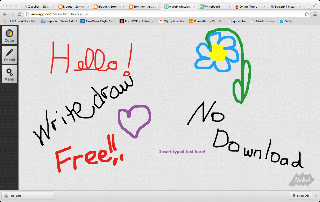
A Web Whiteboard describes itself as a “touch-friendly online whiteboard app that lets you use your computer, tablet or smartphone to easily draw sketches, collaborate with others and share them with the world.” It worked on all of my browsers and did not require any installation.  This simple white board allows the user to draw, write or insert text.  After drawing, the work can be cleared, saved, or shared by inviting others to view using a link or via twitter, Facebook or reddit.  In my case I wanted a whiteboard, or a clean slate that allows students to show or draw their thinking.  My students hate writing on paper, but whenever we do whiteboard and dry erase activities, they participate and just seem more excited.  Unfortunately, when they erase their boards, their work is gone.  With A Web Whiteboard though, students can share their best whiteboard work with me using the URL link, and I will be able to share this work at their team meetings, or I can print a copy to place in their portfolios.

After finding this easy to use online whiteboard, I still had to find an easy to use screencast tool.  Screenr was suggested on http://www.schrockguide.net/online-tools.html, so I gave it a look.  Screenr describes itself as “a web-based tool that lets you create screencasts without installing any software. You just click the record button and your screen activity is recorded along with narration from your microphone. Screenr then publishes your screencast in a high-definition Flash format.”  You can share your 5-minute Screenr casts on Twitter, YouTube or by sharing the URL or using the provided embed code.  I have used Jing in the past, but some of our computers do not accept it, and it is easier to use this web-based tool, than worry about downloading.  There was one minor issue that did come up. I like to use Chrome for my browser. Screenr did not work with Chrome, but I was able to use it easily with Safari.


Using Screenr combined with A Web Whiteboard, I think that my students can meet the objective of showing how to use POWER as a strategy to solve a variety of math story problems, but I think that I could also use it to make sets of directions or models for other computer tasks like how to sign-in to certain sites, or how to upload their work samples to the class wiki.

While I was lost online exploring, I found many other useful tools that I am considering using, but
Flisti, A Web Whiteboard, and Screenr are three easy to use tools that I can put to use immediately in my classroom.

Thursday, November 8, 2012

Filling Up My Toolbox!

This week I was able to explore new URL shorteners, how to create and use QR codes, and bookmarklets that were also new to me.

I have used tinyurl.com for years in order to shorten URLs that I send in my parent and student e-newsletters, so I decided to try these other URL shorteners to see if I like them any better. Since I am not allowed to publicly share my class site because it has student work samples and comments on it, I decided just try the shorteners with pages for our program that are public.

They all worked about the same as tinyurl except that Ow.ly and Goo.gl required me to prove that I was human using a CAPTCHA. Bit.ly was visually appealing and if you signup for a free account, it will create a library of your shortened URLs. I think that I still like tinyurl the best though. It allows me to create a custom shortened URL which is easier for me to, identify, share and remember.

Here are some examples of shortened URLs:

http://www.thebridgecm.org/about-the-bridge/what-we-do/special-education shortened on Ow.ly to http://ow.ly/f83qt

http://www.thebridgecm.org/images/stories/GSHS/school_house_Newsletter_June2012.pdf shortened on Bit.ly to http://bit.ly/SPcJlQ

http://www.thebridgecm.org/about-the-bridge/what-we-do/child-a-adolescent-residential-services shortened on Goo.gl to http://goo.gl/V2Hqx

And http://www.thebridgecm.org/images/stories/GSHS/school_house_Newsletter_June2012.pdf shortened on Tinyurl to http://tinyurl.com/SHNews6-2012.

I have seen QR codes popping up around my community, and have seen retailers using them for coupons, but I had not really considered their use in education. After reading a few articles, I downloaded Scan, a free QR reader app for my iPhone, and scanned some of the QR codes I found on education websites. Here’s a QR code I made using Delivr for one of the resources that I found. 
QR Codes in Education

QR Codes made with Delivr  Placed in Daily Schedule
There were many great ideas for embedding QR codes in student projects, on bulletin boards, and on worksheets. If my students had iPads or access to smartphones in the classroom, I would use them in student learning centers or in project descriptions in order to take them to specific videos or web-sources for information. I often use SurveyMonkey for my QCQ’s (Quick Check Quizzes) at the end of small units of study. I could use a QR so that my students could access the link and take the quiz from their iPad or smartphones. Unfortunately, in the self-contained classroom that I presently teach, my middle school students are not allowed to use any personal devices to access the Internet. We have enough laptop and desk top computers for each student to use, and so for now I use bookmarks, but I can see that in other settings and maybe even in this setting in the future, how QR codes could be a faster and easier solution. If we could use mobile devices like smartphones or iPads, one easy way for me to use the QR Codes would be to place the codes on the daily schedule that I post each day on the board. 

The two bookmarklets that I tried were Quietube and Printliminator. Quietube was an instant hit. It allows me the chance to be a bit more spontaneous in sharing a YouTube video with my students. I can just click the Quietube bookmarklet in the bookmarks bar and instantly the video that I want to show my students is displayed on a less distracting and safer page. Usually, I have to take the time to embed the video into my wikispace to show it without sidebars and ads. Keepit was supposed to allow me to download and save YouTube videos, but I could not get it to work on my personal computer.

I could see Printliminator being something that I would use pretty regularly too. Every now and then, there’s something valuable on a web page that I want to print or show that has too many extra graphics or ads cluttering the page and potentially wasting ink. Before The Printliminator bookmarklet, I would have used Grab or Jing to capture the selection, or selections, and then saved it as a tiff or a jpeg. I may even have had to insert the image, images, into a document to resize it, or just reconstruct the page without the extra clutter in order to make it more suitable for printing. This process requires many more steps then the Printliminator bookmarklet. Clicking The Printliminator bookmarklet in the bookmarks bar instantly gives a drop down of tools that allow the user to eliminate graphics or select portions of the page to delete. There are also buttons for undoing, or restoring what you have just deleted, and a button that sends the page directly to a printer.

I think that I am going to need a bigger toolbox in order to hold all my new cool tools!

Dar 20-21 GoogleDoc http://tinyurl.com/Dar2021
Early Man Quiz http://www.surveymonkey.com/s/WN87M8J
Printlimator http://css-tricks.com/examples/ThePrintliminator/
Quietube http://quietube.com/
QR Codes in Education http://www.livebinders.com/play/play_or_edit?id=51894

Sunday, November 4, 2012

Digging Deeper-Edmodo, Myths and Legends, and SymbalooEDU

The past few days, I have been exploring the educational uses of social, creative, and curation, Web 2.0 tools.

Because I am very familiar with Facebook and Twitter, I chose to explore Edmodo. I have heard a lot about it from other teachers, but felt that my Wikispace probably served some of the same purposes, so had never really given it a serious look.

According to the About Edmodo page on the Edmodo site, it “is a free and secure social learning network for teachers, students and schools. Edmodo provides classrooms a safe and easy way to connect and collaborate, offering a real-time platform to exchange ideas, share content, and access homework, grades and school notices.”

Because it is FREE, I signed up for an account so that I could see how easy or difficult it is to use. The first thing that I noticed about the Edmodo page, is how much it resembles a Facebook page. This would be very appealing to my young students. They are not yet 13, so technically cannot have Facebook accounts. Plus, due to a history of unsafe behaviors associated with their individual mental health issues, my students are restricted from using the Internet and social networking sites outside of school, and without direct supervision.

Edmodo offers some built in security features. Teachers establish the class groups and provide the students with a class code that they need to use in order to read or participate in the class group. The teacher acts as administrator, and can receive notifications whenever a student posts. Additionally, students cannot have private conversations with each other, and if a student misuses the Edmodo class platform, the teacher can reduce their privilege to “Read Only.”

Educator, Daniel Rothrock, posted on StudyBlue that he uses Edmodo for direct, communication, folder management, and for collaboration and feedback. Edmodo provides a homebase where teachers can communicate with students regarding assignments, grades, and upcoming class events. Teachers can also create folders of resources, notes, presentations, class handouts, organizers, and even exemplars of student work. Collaboration opportunities exist when teachers post thoughtful discussion prompts and when students ask questions and can receive answers and feedback from peers and from their teacher. Additionally, Edmodo allows teachers to embed quizzes and polls, and the Edmodo mobile app means that teachers can monitor posts and questions from any location.

I could see myself using Edmodo to manage my class, and also as way of teaching my students how to interact on the Web respectfully. While my students live and attend school in a strictly supervised environment, they will hopefully, not be in this setting forever. It will help them to have some safe practice opportunities in which to develop and practice positive social web behaviors.

Since I have used all three of the suggested creative sites (GlogsterEdu, VoiceThread, and Prezi) both as presentation tools to teach a topic, and also for my students to create their own projects and presentations, I searched for a different site to explore. While looking on http://cooltoolsforschools.wikispaces.com, I found the Myths and Legends Story Creator site.

This year we study ancient civilizations. We study the myths and heroes associated with each civilization. Additionally, as part of our ELA standards we study myths and legends. Students can read from the Myths and Legends library and use the interactive Myth Map to see where the stories are from, or they can read the published original myths of other students.

Once a teacher sets up a class and assigns students individual usernames and passwords, the site gives students the opportunity to compose their own digital myths and legends using a storyboard or a frame-by-frame sequence. Students can use the provided gallery of images and animations to illustrate their stories, or they can upload pictures from the web, their own photos or their own original artwork. Of particular interest to me, is that even my students, who struggle to write, can keep the oral tradition alive by recording themselves telling the story.

This FREE site allows students to print their written stories, or to submit them for review online. Teachers review the stories and can message feedback to the student. Students can also submit their myths and legends to publish on the site and receive feedback from other readers. The Teacher Resource Center offers lesson ideas and tutorials for teachers and students to use in the classroom and to improve student compositions. I think that my students will enjoy using this digital myth creation site, and I appreciate the chance for my students to safely publish their original compositions.

The final site that I explored and evaluated for use in my classroom is the curation site, Symbaloo. Pinterest is very popular right now. Every time I look at Facebook, someone has pinned something new in Pinterest, so I have looked at it a few times. For me, because I am not a super visual person, Pinterest boards can appear visually cluttered and overwhelming. Symbaloo, on the other hand is visually organized, but it combines words, simple symbols, and color-coding.

http://symbaloo.appappeal.com/ describes Symbaloo as a “customizable start page tool that lets users add all their most important links in a format that is easy to use.” I can see myself, as a teacher, using SymbalooEDU, to compile all of the content sites that I have bookmarked in folders on our favorites bar into a class webmix. I could organize the symbol/word buttons by assigning each to a designated subject area of the grid and color-code each. When students click on any one of the buttons it will take them directly to one of my teacher approved websites. I can then make SymbalooEDU the default start page on our class computers to improve the accessibility of the webmix.

I think that while this curation system is appealing to me, it will be easy for my students to use, and might remind them of the homescreen on a smartphone or tablet. While I cannot let my students randomly explore the Internet for their own favorite websites, I can seek their opinions on whether or not a website should be added to our Symbaloo class webmix, and I can also let the students help to group and organize the buttons in a way that makes sense to the users—to the class.

While I want to make a class webmix with acceptable student site-links, I also plan to make webmixes for myself. For example, a webmix of teacher web tools and widgets that I use as resources for my lessons and workshops, or a disability resources webmix. Symbaloo’s mobile app allows for me to add to or access webmixes even when I am out and about. I have used bookmarking sites before like diigo and delicious, but I like the look and the ease of use of Symbaloo.


Edmodo http://www.edmodo.com/
Legends and Myths http://myths.e2bn.org/
Legends and Myths Teacher Resource Center http://myths.e2bn.org/teachers/#general
Study Blue http://www.studyblue.com/about/2011/09/an-educator%E2%80%99s-virtual-classroom-edmodo-style/
SymbalooEDU http://www.symbalooedu.com/

Friday, November 2, 2012

New Technologies


In my current position, while I am surrounded by psychologists, counselors, and mental health workers, I am the only teacher in the house. So, for this assignment, I reached out via email to teachers that I know from all over the country. It was interesting to me, that many responses that I received listed software tools such as Keynote, or iMovie as new technologies that they were using. Teachers in my previous district have required every students to have an iPad, and similarly, when I asked about Web2.0 tools, they responded with apps that operated more as software, meaning that they often lacked the creation, share-ability, edit-ability, collaborative qualities that I associate with Web 2.0.

Two of my former Project Based Learning classmates and partners responded too. One mentioned using GlogsterEdu and GoogleEarth with his 3rd graders. I use GlogsterEdu and GoogleEarth regularly with my students, so when one of my other partners responded about using something called ClassDojo, I thought that I would take a look.

My former partner J.D. said that he was using ClassDojo for behavior management. ClassDojo allows teachers to track positive and negative behaviors in the classroom for classes or individual students. He decided to look into using this tool, because he thought that it would appeal to the elementary and early middle school age-group, and because it could be used on different devices such as iPad, iPhone, android, computer, or any device with internet access. Promoting positive behaviors, while diminishing undesirable behaviors, helps to create an environment that is open to learning.

J.D. said that the only obstacle to using this web-based behavior management tool, has been deciding which device to use to track behaviors. Since it can be used on so many different devices, this seemed more like a plus, or an individual classroom issue, not a real problem. Naturally, I wanted to see how ClassDojo actually worked, and how the device issue might be a problem in the classroom. I created a free teacher account on my home computer, created my class, added positive behaviors to promote, and negative behaviors to lessen, and the next day, I logged in to my new account from my classroom computer. I also downloaded the app to my iPhone, and asked both classroom aides if they would mind adding the app to their individual phones. They both gave it a try. One has an Android and one has some other kind of smartphone with Internet access. For the last two days we have used all devices with the same login and have been giving both positive clicks and negative, as necessary, for observed behaviors. In our small, self-contained setting, devices did not seem to be an issue since they all fed into the same daily report. Whenever one of us gave the students a positive click, a chime could be heard in the classroom, and whenever a negative click was issued there was a resounding gong. Periodically, I showed the totals on the SmartBoard, and also allowed students to check-in with me privately to review their results as they requested throughout the day. While the tool did pique student interest, it did not seem to alter their behavior tremendously during the two-day trial, but it does seem like an excellent way to track behaviors, produce reports, and even share those reports with others.

The advice my old partner J.D. gave, was to be sure to have a clear goal on how you would want to use the data. He said that he started using the program too close to parent-teacher conferences for the data to be useful for him. I am in a different setting, however. I have to give reports on behavior everyday for logs, and weekly for wraparound meetings with the family, psychiatrist, psychologist, and state agencies. I need a little more time with ClassDojo, but I think that since the kids seem interested, that I would like to see them try to improve their overall percentages of positive to negative clicks. The tool gives this data, and rather than reward a student for having the best behavior, I think that I would rather work out some sort of incentive for improving individual week to week behavior by something like 10% of baseline. We’ll see how it goes. Thanks to J.D. for sharing this innovative new webtool.

Monday, October 22, 2012

Creative Commons Licensing


The content in my blog is now protected under a Creative Commons license. The following Attribution-NonCommercial-ShareAlike license allows others to share or modify my work for non-commercial purposes as long as the work is attributed in the way that I have specified. Individuals who use my work as-is, or individuals who “alter, transform, or build upon this work” have permission to “distribute the resulting work only under the same or similar license to this one.”

I chose this Creative Commons license because so much of what I have learned, and have built upon has come from teachers who were willing to share their ideas and their work with me. Teachers share. It’s what we do. It is nice though, when I do have an original idea, to be able to savor a bit of the credit. Usually though, when I have that one original idea, some other teacher comes along and makes it even better!

You can find more information about Creative Commons licensing at http://creativecommons.org/. The site is loaded with information and easy to navigate. I found the descriptions and links to various educational projects (http://creativecommons.org/education) to be particularly interesting.


Sommer-Instructional Media by Melissa Sommer is licensed under a Creative Commons Attribution-NonCommercial-ShareAlike 3.0 Unported License.

Based on a work at http://sommerinstructionalmedia.blogspot.com/.

Sunday, April 17, 2011

Web 2.0 Tools Support Achievement of NETS Standards

Webopedia defines Web 2.0 as “the term given to describe a second generation of the World Wide Web that is focused on the ability for people to collaborate and share information online.”

There are many sites devoted to organizing these dynamic tools and a few that are dedicated to Web 2.0 and education. Three sites that I have found useful include TEACH WEB 2.0, GO2WEB20, and my favorite—Web 2.0: Cool Tools for Schools.

TEACH WEB 2.0 was created by a group of Florida teachers with submissions from other sources. Each tool is evaluated for strengths, weaknesses and opportunities for use. They are alphabetized and not categorized or tagged, so you have to explore them individually.

GO2WEB20, is not dedicated to education, but it is easy to locate tools that could be used in school because each tool is tagged and categorized.

Web 2.0: Cool Tools for Schools. is an award winning wiki with well organized categorized list of tools with school aged children and education in mind.

The National Educational Technology Standards for Students address the following domains:
1. Creativity and Innovation
2. Communication and Collaboration
3. Research and Information Fluency
4. Critical Thinking, Problem Solving, and Decision Making
5. Digital Citizenship
6. Technology Operations and Concepts

Glogster, Storyjumper, MuseumBox, ToonDoo, Prezi are examples of Web 2.0 tools that could be utilized to meet the first standard of creation and innovation. They are all easy to use multi-media creation and publishing tools that offer students the ability to construct and display information, tell a story, or present something they have learned. This past week 5th grade students had a homework assignment to create a 4 square book report on a biography they had read about a famous early American. I had demonstrated ToonDoo, in class using the projector, and suggested that this might be an alternative to handwriting and illustrating. One student gave it a shot. The product he created was tremendous. He had uploaded clipart, and each square had a border of symbols that he had time-consumingly dragged and dropped around each or the 4 squares. It was as much effort, maybe even more because he had to learn the ToonDoo, tool, but he was so proud of his work and the risk he took.

Skype, GoogleDocs, WikiSpaces, Wallwisher, Dabbleboard, KidBlog are all collaboration and communication tools that can be used in education. Skype allows for communication beyond the classroom and eliminates the distance factor when accessing experts. The Wikispaces discussion tab is a useful mechanism for posting questions and students can respond and help each other. Wallwisher is an easy to use quick place for students to post questions or answers to a prompt on virtual “sticky notes”. Dabbleboard is a collaborative drawing and writing platform that can e used with computers or an interactive whiteboard. Kidblog is a safe blogging platform where students can communicate what is on their mind or respond to writing prompts from teachers. As with most Web 2.0 tools there is an opportunity to receive feedback through comments. discussion tab is a useful mechanism for posting questions and students can respond and help each other.

Because of the age group that I work with, the standard of Research and Information Fluency can be tricky and requires safe research systems and also teaching a new kind of literacy. Students often believe that when they use a search engine that the first choice is the best choice for the information they are seeking. Students need to learn how to evaluate and verify the information on a webpage and also how to evaluate and verify the source or sources providing the information. This Kathy Schrock link has some useful tools for teaching evaluation skills to students-- http://school.discoveryeducation.com/schrockguide/eval.html, and the following link: CyberEthics has an easy to use lesson plan too. While my students are learning the skills that they need to navigate the internet safely and efficiently I like to set up safe searches using some of the Web2.0 tools of Custom Google Search, DoGoNews, PrimarySchool.tv, Pics4Learning, and of course Discovery Education Builder Tools.

Invention at Play and Questionaut are two websites that offer game opportunities for students to develop their Critical Thinking, Problem Solving, and Decision Making. They present puzzles and challenges that need to be accomplished in order to move to the next level. While these are fun skill building sites, there is much more to be said for allowing students to stretch their brains and construct their own games and animations around a topic. MIT’s Scratch offers students that opportunity. Although there are tutorials, students can learn how to use Scratch through trial and error as all of their building blocks are visible and they can view the result of an action immediately. Scratch also allows for “remixing” or editing someone else’s invention, and also allows for sharing and commenting. Last school year I ran an afterschool Scratch club. It was amazing how much students learned from each other and how complex some of the games were. There are also educational uses for Scratch. Students could animate the problem and solution of a book they have read, or create a game around the Battles of the Revolutionary War.

Digital Citizenship refers to understanding “human, cultural, and societal issues related to technology” and also the “practice of legal and ethical behavior.” One way to develop understanding for others is to reach out to the global learning community and share in contextual learning activities using tools such as iEarn and ePals. Both iEarn and ePals help to partner teachers and classrooms from around the world in common learning experiences despite the distance and differences between them. Both sites also have banks of lessons and projects that can be used to develop understanding for global issues. Netiquette is a term coined to describe the set of acceptable behaviors for positive digital interaction. It is important to explicitly teach safe behaviors and help students understand the indelible footprint they are creating as they walk through the Internet. Common Sense Media has advice, activities and articles for parents, teachers and students. They also have easily implemented lesson plans for teachers to use with all age levels.

To achieve standard 6-Technology Operations and Concepts students have to have opportunities to get their hands on the keyboard, mouse, and track pads. They need to be part of the problem solving team when technology fails in the middle of a lesson. All of the suggested Web 2.0 tools and sites listed above when used as part of a lesson that is thoughtfully planned with content, pedagogy, and technology all considered, will allow students to develop skills around computer technology operations and concepts. Opportunities for problem solving occur everyday in every part of a student’s day, but they only have that opportunity with technology if you allow them to power it on.

International Society for Technology in Education (2007). NETS for students 2007. Retrieved April 15, 2011 from http://www.iste.org/standards/nets-for-students/nets-student-standards-2007.aspx.

Saturday, March 19, 2011

Project Based Learning-Common Elements/Teacher and Student Roles

In this first week of the Project-Based Learning class, I read 3 articles and viewed 3 videos about different Project-Based Lessons. Some of the design principles that were evident in all three lessons presented included real life problems or situations, development of guiding or essential questions for students to answer in their work, group work or collaboration, integration of other curriculum skills, access to outside experts, and planned assessment.

The teacher’s role as a planner and facilitator is to present a situation, or to help students identify a problem or topic, and then facilitate a discussion that generates a list of questions.   Part of the planning responsibility is to strategically group students.  According to the project materials for the architecture project, Ms. Reeders had pre-identified students as Project Managers.  Each group had to have one Project Manager, but other than that students could arrange their group with 2 to 4 people per group.  This provides students with an opportunity to develop their ability to give and receive feedback, to share labor, and to negotiate ideas in order to produce their best work.

In all three of the projects, there were pre-designed learning tasks that included research, measurement, construction, writing, and data collection.  The teachers’ roles shifted to more of an overseer.  They provided feedback and asked questions throughout the project process.  The teacher is also observing how well the students work with their teammates throughout the project.

I found it most interesting that all of the projects provided access to professional experts from the field of study.  After reading the first article and viewing the video, I thought that it was a wonderful bonus piece, but had not considered that it might be key to the Project-Based Learning approach.  Inviting professionals into the classroom, fieldtrips to a worksite or museum, or in our new world-- online collaboration opportunities can enhance the real-world connection for students.

Assessment was ongoing, but most notably there seemed to be elements of product such as a data collection folder or a model, oral presentation in the form of questioning or group presentation, and reflection about the learning process and what the students ultimately learned.

The role of the teacher is best described as planner, organizer, facilitator or coach.  The role of the student is best described as researcher, builder, designer, collaborator, data collector, analyzer, and presenter. 

I have searched and cannot figure out where I heard it first, but someone quoted someone as saying, “The one doing the talking is the one doing the learning.”  Even though I do not know the source, the comment makes sense to me.  In the videos viewed this week the students were talking together and solving problems together, and designing their own systems for solving those problems.  If the teacher were to engage only in direct lecture and model style instruction the students become passive receptacles for information.  As the students are researching, finding solutions, or manipulating information for themselves, they are learning.  If the students are then asked to organize and present their new information or project, they have another opportunity to rehearse what they have learned, and they may even renegotiate or revise their product at this time. By the time students have a chance to sit back and reflect on the entire project from start to finish, they have had multiple active engagements with the concepts and more authentic and memorable learning experiences. 


Resources:
Armstrong, S. 2002. Geometry Students Angle into Architecture Through Project Learning. Retrieved from http://www.edutopia.org/geometry-real-world-students-architects.

Curtis, D.  2002.  March of the Monarchs: Students Follow the Butterflies’ Migration.  Retrieved from http://www.edutopia.org/march-monarchs.

Curtis, D.  2001.  More Fun Than a Barrel of . . . Worms?!.  Retrieved from http://www.edutopia.org/more-fun-barrel-worms.

Sunday, March 13, 2011

Google Earth--A Journey of Mythic Proportion

Back in the 1980’s when I went to college right after high school I took a class called Oriental Mythology.  The class was far from the regular old freshman curriculum, and I loved it.  My mom was a professor of World Religions and Philosophies and my dad was a Congregational minister, so I felt like I was pretty well versed in bible stories and mythology.  One of the books for the course was Joseph Campbell’s, The Hero with a Thousand Faces, and while we read about Moses, and mythology like the Gilgamesh Epic and Monkey: Folk Novel of China, I was mesmerized by the overlapping characteristics of all of these stories.  I dreamed my own story of a people huddled together on the supercontinent, Pangaea, separated one day or over the course of years by cataclysmic geologic events like our neighbors in New Zealand and Japan are experiencing.  And these people without the benefit of Wi-Fi and mobile phones, communicated through story, but could not call their grandmother in Florida to ask the order of events or verify the names of people.

Every year I am amazed at how easy it is for kids, and really for all of us, to identify the differences between others and ourselves. We struggle to find that common ground.  My thinking is that these myths and the idea of the archetype of the hero might be a place to start.

By noting what is common in these stories from around the world I hope to provoke group discussion about different cultures and other possible areas of overlap in the ten cultural universals.  I also hope to generate some self-reflection as the students look at their own lives to see if maybe they also have heroic qualities. By studying other cultures and providing activities that help students to personally connect, I can encourage the development of the respectful and ethical minds in my students.

The Massachusetts state standards addressed in this lesson include: Massachusetts History and Social Science Curriculum Frameworks

7.32 Describe the myths and stories of classical Greece; give examples of Greek gods and goddesses, heroes, and events, and where and how we see their names used today. (H)

7.8 Identify polytheism (the belief that there are many gods) as the religious belief of the people in Mesopotamian civilizations. (H)

7.21 Describe the monotheistic religion of the Israelites. (H)
A. the belief that there is one God B. the Ten Commandments C. the emphasis on individual worth and personal responsibility D. the belief that all people must adhere to the same moral obligations, whether ruler or ruled E. the Hebrew Bible (Old Testament) as part of the history of early Israel.

 7.32 Describe the myths and stories of classical Greece; give examples of Greek gods and goddesses, heroes, and events, and where and how we see their names used today. (H)

This lesson is not isolated to just one strand of learning.  By using Google Earth a sense of distance and space is modeled, and the students can easily spot geographic features that they have learned about in their text such as the Tigris and Euphrates Rivers and the islands that comprise Greece.  Although students will not necessarily choose to present their assignments in a traditional writing format, by using the Read, Write, Think planning tool, students will learn a system for organizing their ideas toward composition and presentation. In addition, students will gain skills working with computers and online tools that can be applied in both the educational and social contexts.

Enjoy The Following Google Earth Virtual Field Trip:
A Journey of Mythic Proportion  
A_Journey_of_Mythic_Proportion.kmz

Thursday, March 10, 2011

Developing My Five Minds

Developing My Five Minds for the Future
Gardner, Howard. (2006). Five minds for the future. Boston: Harvard Business School Press.

Thursday, March 3, 2011

Developing the Respectful and Ethical Mind

Julene Reed suggests in her article, Global Collaboration and Learning, that “Digital Storybooks" are one way that “Students can capture the essence of their lives.”   With that in mind, I have been trying to find a way to help my small group of students get interested in using iPads for composing text.  Part of my rational is to get the kids used to the flat touch keyboard of the iPad, so that they can efficiently use this tool to meet writing requirements in the classroom.  The other part of my reasoning is that we have been doing a lot of what I call heavy writing, meaning essay writing or writing in response to assigned reading. They’re not having fun, and I can see the words “I hate writing” creasing into their foreheads as they concentrate on forming letters to meet the demands of their 6th grade curriculum.

I located an iPad app called 99 Words that allows students to co-author a progressive story.  In order to build a relationship with the two fifth graders and three 6th graders attending a rural K-6 school in Trout Creek Montana, my students in Shrewsbury Massachusetts can choose a genre with my support,  and then start a story.  Each of the 5 students participating from my small group class will write a chapter, which can consists of anywhere from 1 to 99 words. When they have finished, they pass the story to their Montana classmate to compose the next chapter of 1 to 99 words.  When 10 chapters have been written, the book is ready to publish and share. 

I would like to have some sort of videoconference, read-aloud session where each student meets their co-author partner via Skype, and then they read their story together chapter by chapter.

I know that Trout Creek, Montana does not seem like a huge stretch when we are talking about “global education” and “global citizenship,” but there is a vast socio-economic and cultural chasm between this small school and community to the one my own students live in.  For example they have a total of five 5th and 6th graders while my current school has close to 1,000.  The number of students eligible for free or reduced-price lunch at the Trout Creek Montana School is 61% and at my current school is 10%. Trout Creek’s median household income is $33,724, while Shrewsbury’s is more than double at $81,643.  One possible advantage their school has over ours is that their total per pupil expenditure is $15,845, while ours is $10,235.  

Trout Creek, MT---March 1, 2011


There are many winter days that students cannot get to school because they live so far off the beaten track that it takes days for them to dig themselves out.  They do not have a large peer group to challenge them or to choose from for friends.  Several of the children live off the grid and use combinations of alternative energies to preserve food, warm water, and to stay warm.  There are families that have lived there for 17 or more years without indoor plumbing and on-demand hot water. There is not cell phone service until you are a good 15 miles out of Trout Creek, but there is free Wi-Fi access at the Naughty Pine Saloon (I posted a Moodle discussion for EDIM-501 from the parking lot this summer☺ 

One of the biggest deciding factors for me in wanting to link with students at this school is to widen the social-cultural network for both sets of students. I knew a family that lived in that area.  They were so far back that they could not get their kids into town to go to school, so they homeschooled.  The web tools available to many families who must, or who choose to homeschool today, were not available.  As the children got older, one went away to Missoula to go to college, but quit after 1 year.   The other child enrolled for high school, but could not handle the experience either.  It was not the academics.  They had eaten every book that came their way, they invented and built all kinds of contraptions, and they had amazing number process skills, and they passed their state tests.  It came down to a social disconnect.  Neither young person could relate well in the larger society, and when they did not understand the expectations and had their first real social mishaps, they killed themselves.  They did this within a few years of each other. It was heartbreaking, and I keep wondering if there was something that could have been done in their younger years to better prepare them.

Hopefully after the initial story writing and video-conferencing we can keep the relationships going. I know that my students would benefit from learning about alternative energies, inventing to survive, and they would learn to respect their partners for the individual talents and skills that they have acquired from their parents and their unique experiences.

I would hope though, that we are not the only ones gaining something. I would like to think that our Montana student partners would benefit from using online collaborative tools like 99 Words and Skype, and that they would see this as an opportunity to build relationships outside of their community.  

Maybe by shortening the distance between Montana and Massachusetts, one lasting friendship can be forged and maybe a future business partnership can be built. All of the students will grow in their understanding of people with a safe, virtual step outside of their  own neighborhoods.

Reed, J. (undated). Global collaboration and learning. Retrieved March 27, 2011 from EDTECH Focus on K-12 
        Web site: http://www.edtechmag.com/k12/events/updates/global-collaboration-and-learning.html.